 devdevian
Devdevian CLI · Alpha
An official terminal client for Devdevian, the open-source developer forum. Use the same account, discussions and community permissions as the web app. Requires Node.js 24 or newer.
npm install -g @tenyokjs/devdevian-cli@alpha
devdevian open     # a separate terminal window
# or: devdevian tui  (the current terminal)
Login opens a browser. Compare the code shown in the terminal, sign in to Devdevian, then authorize the terminal. Google, GitHub and email login happen on the website; no provider credentials are collected by this package. Use --no-open to open the printed address yourself, including when connecting over SSH.
Version-by-version changes and the customization roadmap: CLI version history.
A look inside#
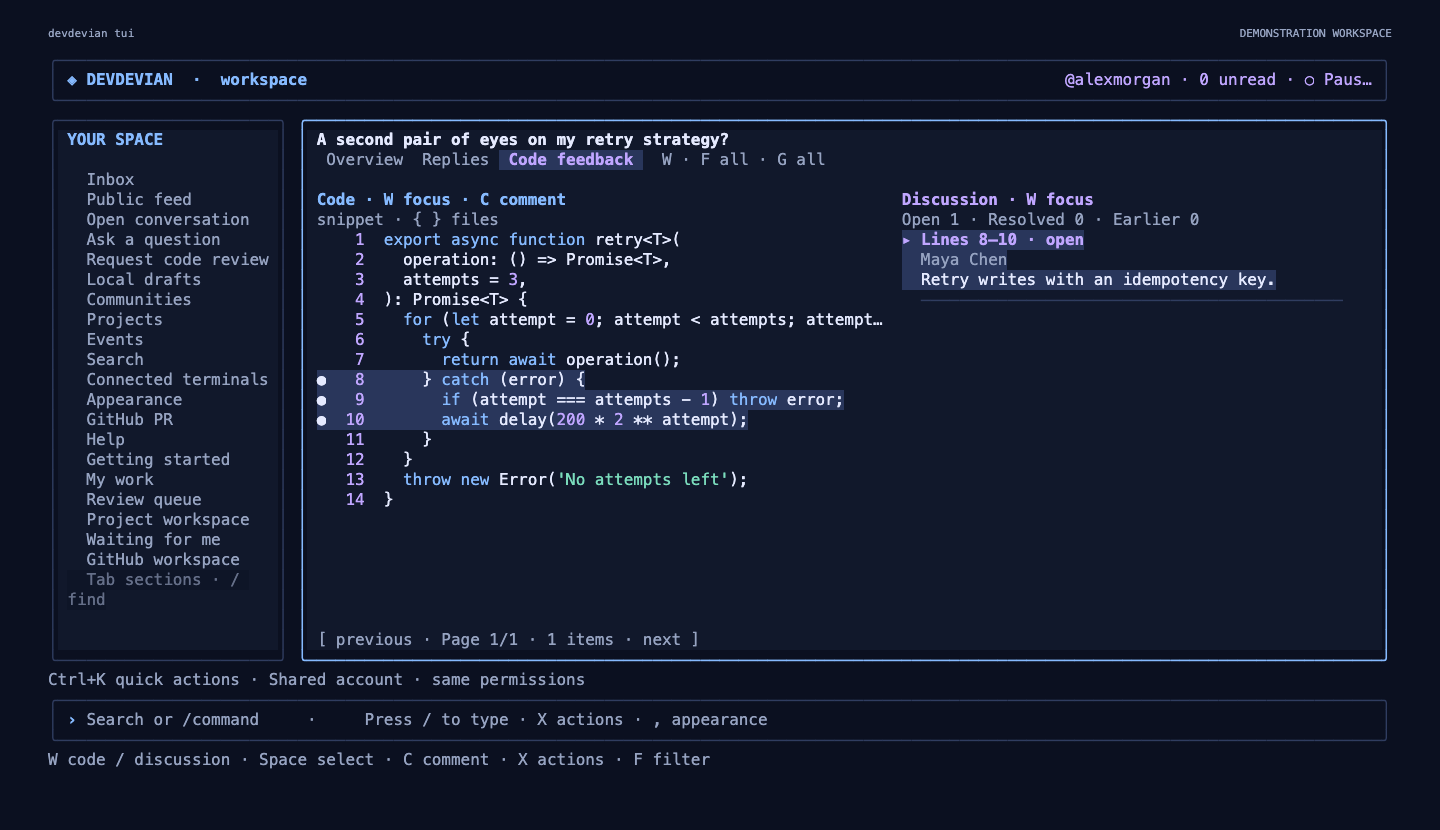
Actual CLI captures from isolated demonstration accounts. Your terminal uses your real forum account and permissions.
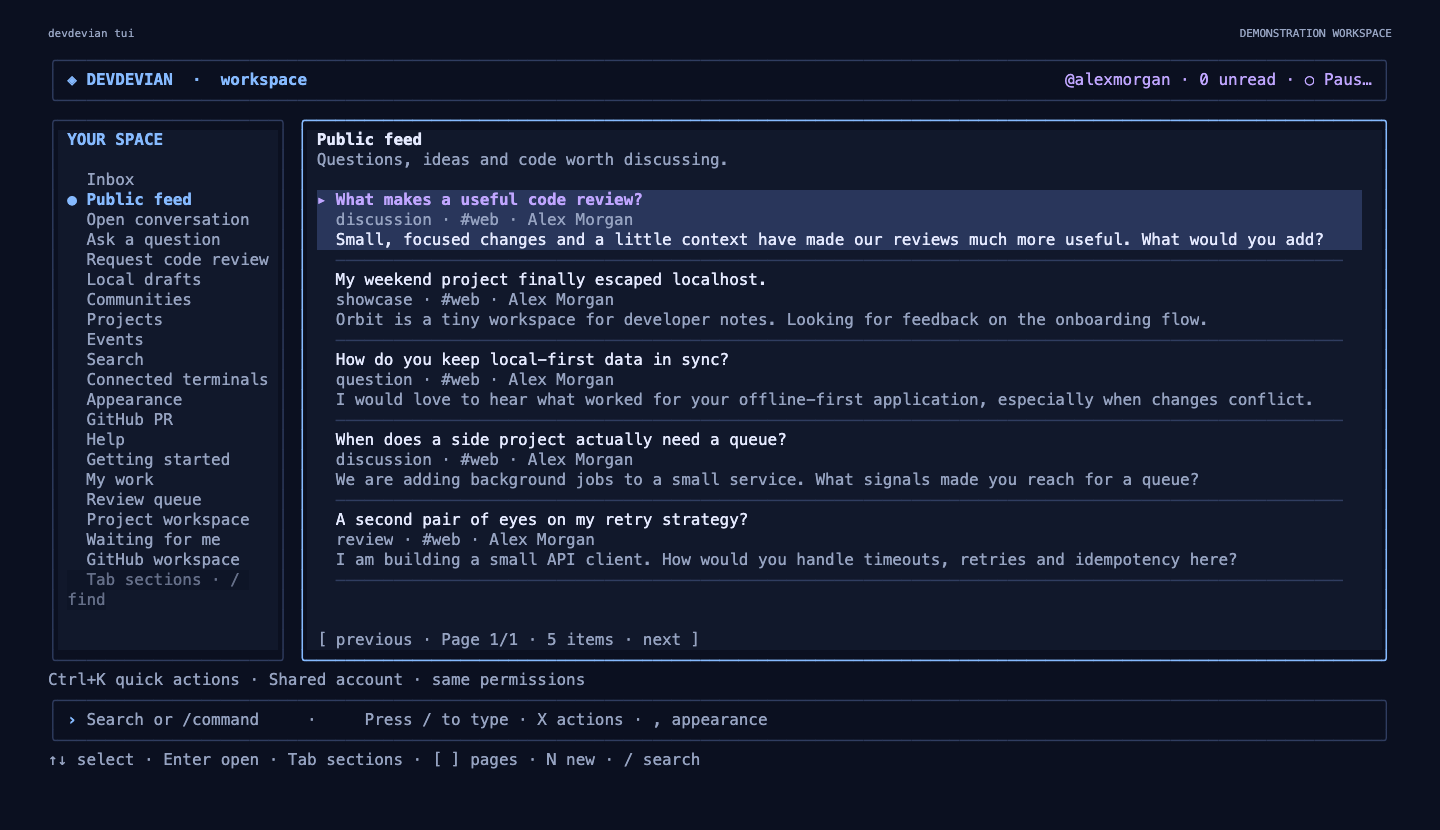
Run devdevian --help for script commands and workspace shortcuts. Interactive help has a large wordmark and selective accents; NO_COLOR=1 keeps it uncolored, narrow terminals use a compact heading, and redirected output stays plain.
Project Rooms#
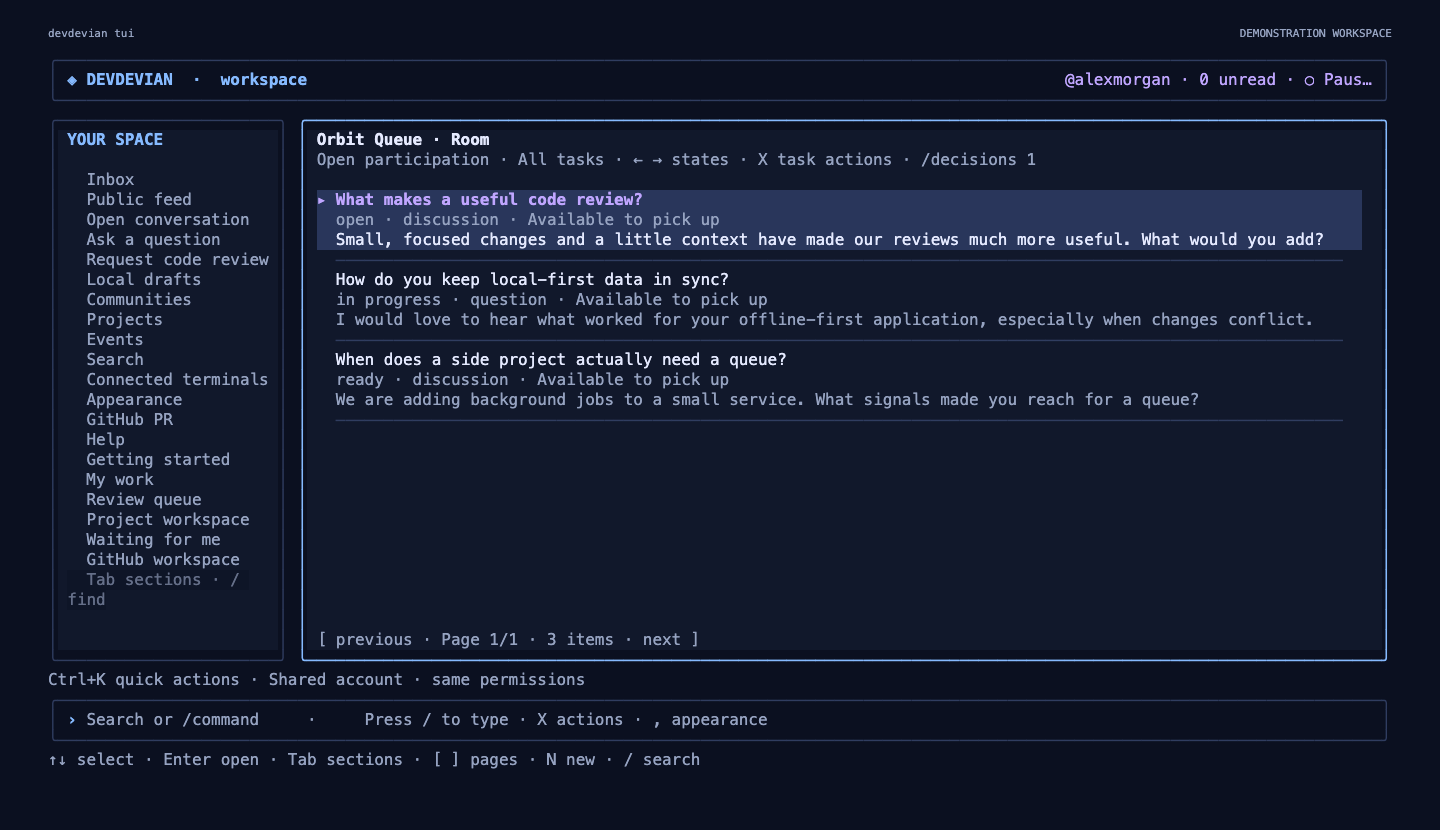
CLI 0.17.0-alpha.1 with browser/API 0.4.0 adds /room [PROJECT_ID], /decisions [PROJECT_ID], /room-activity [PROJECT_ID] and /pin. Open tasks with Enter, switch states with left/right and use X to claim, assign, release or move work. Owner decisions keep immutable history and archive/restore. /room uses the directory’s explicit project binding. All writes retain preview, confirmation and version checks. Workflow, commands and permissions
Review Flow#
CLI 0.16.0-alpha.1 and browser/API 0.3.0 add named reviewer invitations, Waiting for me, immutable version-bound outcomes and links from new revisions to earlier remarks. See the browser/CLI workflow and commands. They require an explicitly prepared matching server; source versions do not imply npm publication.
Workspaces 0.2#
Available in CLI 0.15.0-alpha.1 with browser/API 0.2.0. The server requires the prepared Workspaces schema; older servers remain usable for existing commands but do not expose these capabilities.
Open a project with /workspace PROJECT_ID, or use W / context actions from its project page. ← / → filters All / Open / In progress / Ready; [ / ] pages requests; Enter opens the selected conversation. N creates a conversation with an explicit preview and links it to this project, for its owner. /request POST_ID links an existing conversation; /state POST_ID ready changes its state with confirmation. Both operations require ownership of the project and conversation; team credits grant no permissions. A failed link retains a known published post ID instead of creating a duplicate. Creation intent is saved before POST, so a killed terminal or unknown outcome stops automatic retries and asks you to inspect My work. A definitive validation/quota refusal permits correction.
/bind PROJECT_ID explicitly associates the canonical current directory with a project. The association is stored outside the repository, scoped to account/server/directory; it uploads no files and grants no access. /workspace opens that association, and /unbind removes only the local setting. A public project still shows only the requests you are allowed to read.
In a review, H opens immutable history, U starts a new revision, and B on a remark opens its original snapshot when retained. The same actions appear in X / Ctrl+K. Ctrl+O chooses a file/range, Ctrl+G chooses local Git changes, Ctrl+S previews exact code/focus/base snapshot, and a separate confirmation publishes. A conflict preserves the draft and preview; no silent rebase or merge occurs. Review revision drafts restore from Local drafts. Old remarks remain attached to their own snapshot, even if another revision has identical text. Historical snapshots are read-only; legacy quote-only feedback is labeled accordingly. New local revisions do not inherit old GitHub provenance automatically.
devdevian workspace bind PROJECT_ID
devdevian workspace --state open --page 1 --json
devdevian workspace link POST_ID
devdevian workspace state POST_ID --state in_progress
devdevian workspace unlink POST_ID
devdevian review versions POST_ID
devdevian review snapshot POST_ID SNAPSHOT_ID
devdevian review revise POST_ID --file src/retry.ts --lines 1:40 --focus "Check retry limits and cancellation."
devdevian review revise POST_ID --selections files.json --focus "Check the queue and its tests together."
For review revise, the explicit manifest is an ordered JSON array such as [{"path":"src/retry.ts","start":1,"end":40},{"path":"test/retry.test.ts"}]. This differs from the GitHub PR hunk manifest: paths/ranges refer to selected local text files inside --project PATH (the current directory by default). Up to ten unique files and 20,000 combined characters are accepted. Environment/credential/key files, symlinks, traversal and binary content stay excluded. Scripted writes require an interactive confirmation or explicit --yes; --json alone never confirms a write.
See the Workspaces contract and migration plan. Project decisions and a dedicated activity/seen feed remain future work.
My work#
/work opens Next up: invitations to review, requested changes, feedback to answer and task results needing attention. Use left/right for Tasks, Results, Continue, or the existing Mine/Reviews/Saved/Following sections. Enter opens the selected workflow; X offers project room and on-demand PR/checks. Continue combines local drafts with recently opened conversations whose permissions are checked again by the server. It keeps only IDs/times for recent history, scoped to account, server and canonical working directory.
devdevian work --section tasks --json reads one bounded page; --section continue --project PATH selects local drafts/history for that directory. Full workflow and data boundaries.
Halloween appearance#
Open My work in navigation or type /work. ← / → switches Mine, Reviews, Saved and Following; [ / ] pages results. Enter opens a conversation and Esc returns to its selected page. Reviews contains your own review requests. Following contains posts from your topic/conversation subscriptions, not every conversation you have replied to. Private posts stay subject to the same membership rules as the browser. I opens Inbox; D opens account/project-scoped local drafts.
devdevian work --section reviews --page 1 --json
devdevian tui --theme halloween
devdevian appearance --theme halloween
devdevian appearance --theme midnight
--theme halloween previews for this launch; appearance --theme halloween persists locally. Or use /appearance / comma, choose Halloween and Ctrl+S to save; Esc cancels the preview. Pumpkin glow uses a warm dark palette, orange/gold accents when the default Blue accent is selected, ASCII leaf ornaments and a pumpkin instead of Devi. Other explicit accent choices remain available, including Orange. Switching to another theme removes the seasonal decorations and restores Devi. --welcome off hides the mascot; --motion reduced keeps it static. No date-based activation, extra requests or background decorative animation is added. Standard themes remain the default; appearance --reset restores all defaults.
First launch and connection checks#
Run devdevian tui --start for a short interactive guide, or type /start in the workspace. Choose with arrows and Enter; Escape returns. Newly connected terminals open the guide after browser approval. Existing signed-in launches keep their usual feed.
devdevian doctor
devdevian doctor --offline
devdevian doctor --json
Doctor only reads the environment, validates saved credentials, then checks server health and the session. It changes no files/settings, repairs nothing automatically, and never repeats a publication. /doctor opens the same report inside the TUI; D on the sign-in/connection screen checks problems before login. Escape cancels; R explicitly checks again. Diagnostic details and recovery.
GitHub PR → human review#
Open /pr https://github.com/owner/repo/pull/42, press F, choose a file and press Enter. [ / ] chooses a hunk; Space anchors a range. C starts a review from just those changes. Add context/focus, then Ctrl+S previews before explicit publication. No local repository is required. Full PR/diff guide.
devdevian github diff PR_URL --file src/retry.ts
devdevian github review PR_URL --file src/retry.ts --hunks 1:2 \
  --title "Review retries" --topic web --focus "Check timeouts" \
  --body "Please review these changes and their failure cases."
For a multi-file review, press A in each diff to add/replace its selected range, Esc to choose another file, then R to compose and preview the basket. U removes the current file; Z clears the basket. C retains single-file review. Until R, the basket lives only in this session; the resulting draft is saved normally. In published review workspaces { / } switches files. Script clients can use github review PR_URL --selections selections.json; see the manifest format and limits.
Only public GitHub data is read; private PRs and posting comments back to GitHub are not supported. Reviews store a frozen selected patch (up to 10 files from the same PR revision, complete hunks, up to 20,000 total characters) and base/head commits. GitHub may change afterwards. Local drafts include your selected code; treat them as private files.
Live workspace#
The default devdevian command and devdevian tui open an alternate terminal screen. Navigation, conversations, inline forms, previews and search update in that screen; exiting restores your normal terminal. The blue and purple layout adapts to the terminal size, with compact navigation below 90 columns. Minimum size: 60 columns × 18 rows.
- Tab switches between navigation, content and the command bar. ↑/↓ select; Enter opens; Esc goes back.
- / focuses search and commands:
/feed,/inbox,/search query,/open 142,/ask,/review,/drafts,/communities,/projects,/project 7,/events,/event 9,/devices,/help,/logout,/quit. - ←/→ switch conversation tabs; Space reads the selected reply/remark in full. [ / ] paginate; Page Up/Down scroll.
- N creates a conversation (a community on the Communities screen); A asks a question; R replies inside a conversation; Shift+R refreshes.
- C comments on snippet lines; E/D edit/delete your own ordinary replies or code feedback; S resolves/reopens a code remark or accepts/removes a reply as the solution (question/review author only); ! reports selected code feedback.
- Ctrl+E opens the current multiline field in
$VISUAL/$EDITOR(usecode --waitfor VS Code). Closing the editor restores the form; publishing still requires preview and confirmation. Ctrl+L saves an active draft and returns to sign-in. - In forms, Tab/Shift+Tab change fields or focus the step controls, arrows choose options or move the text cursor, Enter adds a line inside multiline text, and Ctrl+S opens the preview. Publication requires a separate confirmation; Escape asks before discarding a draft. Drafts auto-save locally after a short pause and can be restored from Local drafts or
/drafts. - Ctrl+C exits. With an unsent draft, confirm saving and leaving or press Ctrl+C again to force exit.
devdevian open launches Terminal on macOS, Windows Terminal on Windows, or GNOME Terminal/Konsole/xterm on a Linux desktop. A graphical desktop and an installed supported terminal are required; over SSH and inside an editor, use devdevian tui. Window launchers still need platform-specific user testing; terminal rendering and input are covered by macOS/Linux pseudo-terminal checks.
Pages have a bounded 30-second in-memory cache. Refresh explicitly with Shift+R. Network errors stay inside the workspace; failed writes are never automatically retried. Existing web permissions and server validation apply to every operation.
Ordinary reply deletion replaces your text with a placeholder and preserves nested replies. Its attachments become unavailable. Deleting an accepted answer reopens the question. D/d works on a selected reply or while reading it in full; confirmation is required.
Projects and Events#
Open Projects or Events from navigation, or use /projects search words and /events search words. Enter opens details; [ / ] paginate. F opens searchable filters: topic, project stage/owner/order, or event date, viewer timezone, upcoming/past and participation/order. N creates the current kind; E edits your own detail page. X lists available actions.
Projects include description, requested feedback, technology text, stage, links and team roles. Add team members as @username | Role, one per line. The project conversation opens in the existing discussion workspace. Event details show both your time and the organizer's timezone; J joins/leaves after confirmation. The meeting link follows server permissions. Organizers can edit, cancel and restore their events from X.
On logo/banner/screenshot fields, Ctrl+O opens the workspace file explorer. Choose PNG, JPEG, WebP or GIF files up to 4 MiB each, up to ten screenshots and 20 MiB total. Images stay local until you confirm the publication preview. Blank image fields preserve existing images when editing; - removes them. Screenshots with new paths replace the existing set. Images render in the browser; the terminal displays their presence rather than inline graphics.
Calendar export from X writes a new .ics file inside the open workspace and never overwrites an existing file. Import that file into your calendar application yourself.
Forms autosave locally. Successful upload IDs are retained if validation fails; edits require the latest server revision. If a publication response is lost, the CLI preserves the draft and asks you to check My projects / Hosting or attending before trying another copy. It does not automatically retry an uncertain write. Upload quotas and public visibility are the same as the website. These catalog operations are currently interactive TUI features, not separate script subcommands.
Quick actions and focused work#
Press Ctrl+K outside a form or command input, or run /actions, to search actions, sections and creation flows. Recent views stay in memory for the current account/session; the palette offers up to eight. Type project 7, event 9 or open 142 for an explicit ID, or choose the forum-search result for a text query. Typing stays local; actions run only after Enter. Destructive actions retain their separate confirmation. Esc returns to the previous view without moving your selection.
Conversation, Project and Event forms show one step at a time. Ctrl+N validates the current step and moves forward; Ctrl+P returns to the previous step. Tab / Shift+Tab move through the current step and its Back / Next controls. Use arrows to choose a control and Enter to activate it; the last step offers Preview, not immediate publication. Ctrl+S checks every required field and opens the full publication preview; a missing value returns you to its step. Step changes preserve text, image paths, code selections and locally saved drafts. No upload or publication happens just by advancing a step.
In full-text reading (Space on a reply or remark), / opens local text search. Enter locates a matching rendered line; n / Shift+N cycles forward/backward. Home / End jumps to the start/end. Esc returns to the underlying view, and reopening the same unchanged item restores your place. This is bounded session memory, not cross-device or permanent reading history. In text fields and the command bar, Ctrl+K continues to delete to the end of the line.
Active fields explain their input: Space stays a space, Enter adds a line in multiline fields, and Tab leaves the field. Project feedback accepts text and URLs; dedicated website/repository/additional links are in People & links. Additional links use one Label | https://example.com per line. Context hints stay below the editor on larger terminals and use the status/hint lines on compact ones. Ctrl+S checks the complete form and opens a preview; drafts autosave locally and publication still requires explicit confirmation.
Multiline fields show the current logical line and total line count. While editing, the command bar gives its space to the form; the caret stays visible as you add lines or move through the text. Previous lines remain part of the same field, including after Enter. On short terminals only a window of a long message is visible; use ↑/↓ to revisit earlier lines or Ctrl+E for the external editor.
Conversation overviews and publication previews display Demo/Repository URL fields alongside any labeled links, with duplicate destinations shown once.
GitHub review context#
Code reviews have an optional GitHub step after Content. Change GitHub context from Skip to Include, optionally add a PR URL from the same repository, and inspect the complete publication preview. The repository, branch, base commit and selected path appear in both CLI and browser. Local code may differ from that base commit; metadata is author-provided and PR content/status is not synchronized.
The command equivalent is devdevian review create --file src/retry.ts --title "Review retries" --topic web --body-file question.md --focus "Timeout handling" --github-context --pr https://github.com/owner/repo/pull/42. The PR is optional. Context is opt-in, reads local Git only and needs a GitHub origin and existing HEAD. No new OAuth setup is required. See the full guide.
Read a public GitHub PR#
Choose GitHub PR from navigation, type /pr https://github.com/owner/repo/pull/42, or use X → Read linked GitHub PR from a conversation. The read-only view shows status, title, author, head/base branches, description and paginated changed files. [ / ] switch file pages, Shift+R refreshes, and Esc returns to the forum.
The command devdevian github pr https://github.com/owner/repo/pull/42 --page 1 --json works without a forum login. Public reads go directly to GitHub without credentials; results are briefly cached in memory and are not posted to Devdevian. Private PRs, full patch inspection and GitHub comments are outside this stage. See public PR reader for limits and error handling.
Meet Devi#
Devi is the Devdevian mascot: a small ghost with a laptop and an orbit. The terminal uses colored ASCII art, so it needs no image protocol or image downloads. A compact drawing is used when space is limited; authentication codes, addresses and controls take priority over decoration.
- “Devi missed you.” appears while checking your saved session and loading the first page. It disappears as soon as the page is ready; there is no minimum splash duration or fake progress bar.
- “Devi saved you a seat.” welcomes you to browser-approved sign-in. Sign-in instructions stay visible in small terminals.
- Empty feed, Inbox, communities, local drafts and search views show a still mascot with a relevant next step. Errors remain error states; they do not become a happy empty view.
- Subtle mode animates a blink only during startup work or pending browser approval. Reduced motion keeps the drawing static. Disable it entirely in Appearance → Devi greeting, with
devdevian appearance --welcome off, or just for one launch withdevdevian tui --welcome off. - A failed session check offers R / Enter to retry the existing session. Ctrl+C exits during loading. Script commands and
--jsonoutput never print the mascot.
All mascot captions are in English. Welcome preferences are local and compatible with existing 0.5.0 configuration files.
Themes and layout#
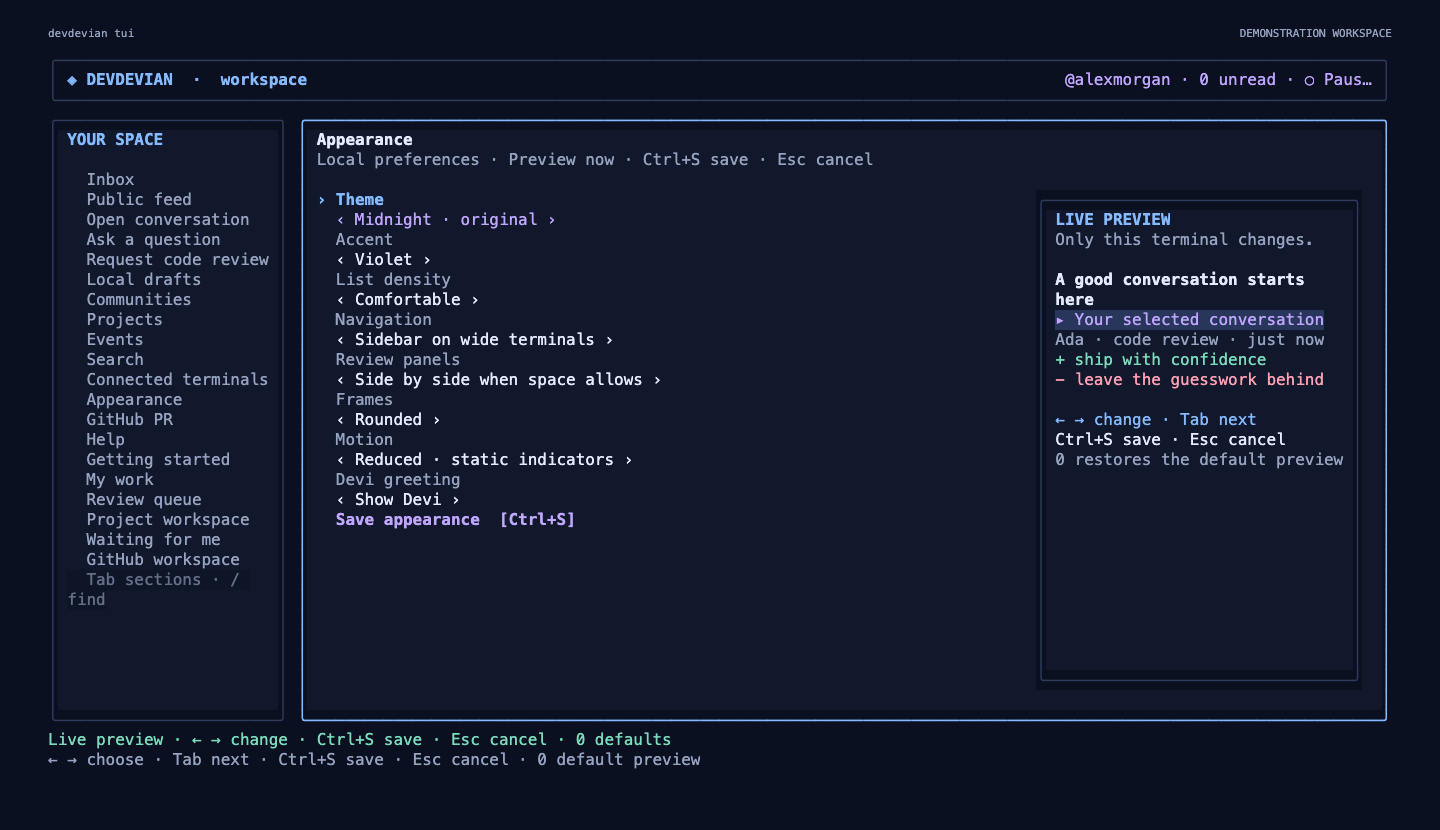
Open Appearance in navigation, type /appearance, or press , from a reading/list screen. Use arrows to choose options and Tab to move between them. The entire interface previews each change, including code colors, the file picker and navigation. Wide terminals include a sample card next to the controls.
- Midnight preserves the original blue/purple design; Nebula uses a deeper violet surface; Daylight is light; Contrast emphasizes readable foregrounds.
- Choose a blue, violet, cyan or rose accent, comfortable/compact lists, automatic/hidden sidebar, automatic/stacked review panels, rounded/straight frames and subtle/reduced loading indicators.
- Devi greeting shows/hides the terminal mascot on startup, sign-in and supported empty sections. Reduced motion keeps Devi still.
- Ctrl+S saves locally. Esc cancels the preview. 0 restores the default preview; save to keep it, or cancel to retain existing settings.
- Hidden navigation stays available with Tab. Stacked review panes switch with W. Narrow terminals automatically avoid a permanent sidebar and split review layout.
Appearance settings belong to this local CLI installation and apply across its accounts/projects; credentials and server profiles are separate. Settings live in appearance.json alongside the credentials file, or under DEVDEVIAN_CONFIG_DIR. Saving replaces the settings file atomically with private file permissions. Invalid settings fall back to defaults with a warning and remain untouched until you save a new configuration.
Appearance can also be configured offline, without logging in:
devdevian appearance                            # print settings as JSON
devdevian appearance --theme daylight --accent violet
devdevian appearance --density compact --sidebar hidden
devdevian appearance --review-layout stacked --motion reduced
devdevian appearance --reset                    # save defaults
These options can be passed to tui or open for a session-only override, for example devdevian tui --theme contrast. Overrides become persistent only if you save in Appearance. Preference changes do not write to the Devdevian API or modify credentials. Current presets use fixed, tested color combinations; the settings file is validated rather than interpreted as terminal code.
Code and discussion, together#
Press V in a review to open the code workspace. Wide terminals show the snippet alongside its discussion; narrow terminals show one pane at a time. W switches focus. In the code pane, arrows move between lines (left/right scroll horizontally), Space anchors a range and C opens a prefilled comment form. Remarks may cover at most 50 lines. Enter selects a remark covering the current line, if it is on the current page. Markers describe the current page only; F cycles all/open/resolved remarks and [ / ] page through them.
Selecting a remark highlights its range. A remark on an earlier snippet shows its saved quote, not unrelated current lines. Switch to current code with W before adding a new remark. Git patch line numbers still include patch headers.
X or ? opens a keyboard action menu for the selected item. It shows edits/deletion for your own content, resolve/reopen for review authors and accepted solutions for question/review authors. Deletion and accepting/removing a solution require confirmation. Feedback reports go to the existing moderation queue. The server checks permissions independently.
Inbox and live updates#
The header shows unread notifications. Live reads run every 45 seconds, slowing to 3 minutes after two minutes without input; failures back off up to five minutes. An expired/revoked session pauses updates. Pause/resume from X → Pause/Resume live updates, or start with devdevian tui --no-live.
Inbox and open discussion views refresh without moving a selected item that still exists. While you type, use a picker, read full text or confirm an action, background reads update only the unread count; they do not replace the view or draft. Polling never marks notifications as read. X → Mark received notifications as read affects only notifications through the last loaded boundary; newer arrivals remain unread. Shift+R refreshes manually.
Project files and Git changes#
Start inside your project (cd PROJECT1 && devdevian tui) or use devdevian tui --project /path/to/PROJECT1. devdevian open --project /path/to/PROJECT1 carries the same project into a new terminal window. The project root stays fixed for the session.
In a Code review form:
- Press Ctrl+O to browse project files, or Ctrl+G to browse Git changes. These shortcuts work from any review field. Enter on an empty Code file field also opens the explorer.
- ↑/↓ select entries; Enter opens a directory or previews a file; ←/Backspace goes to the parent directory. / filters names in the current directory, H shows hidden files and G switches Files/Git changes. Wide terminals show the file list next to the preview; compact terminals use the available width for code.
- In a file preview, use ↑/↓ or Page Up/Down to move. Space starts a line selection; move to extend it, or press Space again to reset. ←/→ scroll long lines horizontally. Enter uses the file/range; Esc returns to the list.
- In Git changes, T switches unstaged/staged. The preview initially includes all hunks for one file; [ / ] choose the whole patch or an individual hunk. Enter uses that selection. Untracked files are selected through Files; binary diffs/submodules are excluded.
- Fill in title, focus and context. Ctrl+S shows the exact code and audience to publish. Publication requires a separate confirmation.
The explorer excludes .git, dependency/build directories, symlinks, common environment/credential/key filenames and (inside Git repositories) ignored paths. No content scanner can identify every secret: inspect the publication preview before confirming. Git is required for changes and .gitignore detection; ordinary file selection also works without Git. Git reads disable external diff/textconv/fsmonitor helpers and never stage, commit, reset or execute project code.
File previews accept UTF-8 text up to 512 KiB; a published snippet/patch is 10–20,000 characters. Large files can be narrowed to a range and large patches to one hunk. Git patches appear as ordinary review snippets on the website; review line numbers count the published patch including headers, not the original source file. Source paths are relative to the project. If the selected patch changes before the publication preview, selection must be repeated. Publication uses the confirmed preview snapshot.
Local drafts#
Publication, reply, feedback, edit and community forms save locally after a 450 ms pause. Explicit draft discard removes that draft; successful publication removes it too. /drafts lists saved drafts for the current server, account and project directory. Nothing is uploaded by autosave. Switching accounts or projects does not expose another scope's drafts.
Draft files live under the CLI credentials directory in drafts/<scope>/, with Unix file permissions 0600 and new directories 0700. They contain your text and file/diff selection descriptors, not copies of selected source files or patches. They are local JSON files, not encrypted; protect your OS account and do not commit/share this directory. The history retains up to 20 drafts per scope for 30 days. An abrupt termination may lose the most recent input before autosave; these drafts are not a backup service.
Restoring a review rereads the local source at the publication preview. Changed Git selections require reselection. A private audience that is no longer accessible is preserved as unavailable until you explicitly choose an available audience; it never silently becomes public.
Everyday commands#
devdevian whoami
devdevian inbox --page 1
devdevian feed --topic web
devdevian search "bounded retries"
devdevian conversation open 142
devdevian ask --title "How should I retry requests?" --body-file question.md --topic web
devdevian reply 142 --editor
devdevian review create --file src/retry.ts --lines 20:65 --title "Review my retry strategy" --focus "Timeouts, retries and idempotency" --editor
devdevian review list 142 --status open
devdevian review comment 142 --start-line 2 --end-line 4 --body "Handle the timeout here."
devdevian review thread 142 12
devdevian review reply 142 12 --body "Would a deadline address this?"
devdevian review resolve 142 12
devdevian review reopen 142 12
devdevian communities
devdevian logout
Commands are examples; replace IDs, file paths and topic IDs with your own. Run devdevian --help for flags. Selected file ranges are published as standalone snippets; subsequent review line numbers refer to that published snippet, beginning at 1.
A selected file is read only when explicitly named. Before publication, the client previews the payload and audience and asks for confirmation. Use --community ID for an approved private community, --json for machine-readable API output and --yes to explicitly publish without a prompt. Noninteractive publishing requires the relevant text flags and --yes. No repository discovery or background file collection runs.
--editor uses $VISUAL, then $EDITOR, then vi (notepad on Windows). The editor is launched without a shell. File, body and API limits also apply in the terminal. This client uses ordinary HTTPS API calls, not a direct database connection, and performs no background polling in script commands. The live workspace polls at bounded active/idle intervals unless paused or launched with --no-live. Device login polls every five seconds for at most ten minutes.
Connected devices and credentials#
Access expires after 30 days. Revoke a terminal from Settings → Connected terminals or run devdevian logout. Password reset revokes CLI sessions alongside browser sessions. Terminal authorization requests approved before a password change cannot mint a new session afterwards.
The credential file is ~/.config/devdevian/credentials.json, with mode 0600 and a new directory with mode 0700 on Unix. This alpha uses a local token file rather than an OS keychain. On Windows, protect your user profile with appropriate account permissions; Unix permission bits are not equivalent to Windows ACLs. Do not share or commit the credential file. Tokens are never printed by login, including with --json.
For local development use devdevian login --host http://127.0.0.1:4173. Remote origins require HTTPS. Credentials stay bound to the selected origin; a different --host cannot reuse them. HTTP redirects are rejected instead of forwarding credentials. DEVDEVIAN_CONFIG_DIR overrides the local credentials directory for isolated testing. NO_COLOR=1 disables terminal accents.
Alpha scope#
This alpha covers login/logout, inbox, paginated feeds and search, discussions and replies, questions, code review creation, line feedback and feedback threads/status, and community discovery, creation and private publication. Project/event creation, editing, media uploads and participation are available in the TUI. Profile editing and moderation remain available in the browser. There is no offline mode or automatic GitHub repository synchronization.
Source, contributions and issue reporting: Tenyokj/devdevian. Report security issues through the repository's security policy, not a public issue containing private data. Licensed GPL-3.0-only.
Review queue and continuity#
Open Review queue or type /reviews. Left/right switches Open requests and Awaiting you; [ / ] paginates and Enter opens the selected review. Script clients can use devdevian reviews --section awaiting --page 2 --json. Queue reads require API 0.1.10+; an older server produces an upgrade message rather than silently returning the feed.
Open requests are visible, open review publications with no accepted solution and no archive/lock. This includes approved private communities you belong to. Awaiting you contains those requests with an unresolved, undeleted code remark where you are the request author, remark author or a visible reply participant, and the last visible message was written by someone else. It is a workflow aid, not a claim that someone assigned you a task. Enter opens one qualifying remark at its latest visible reply; after responding, refresh the queue with R. Resolved remarks and paused/removed/inaccessible conversations leave the queue. Deleted messages do not determine the last speaker. Earlier-version open discussions can still need a reply.
The review discussion header shows Open / Resolved / Earlier totals: open and resolved refer to the current snippet; earlier counts remarks on older code. Deleted remarks are excluded from totals. F cycles status and G cycles all/current/earlier snippet versions. Totals cover the whole review independently of the current page/filter. On very short terminals secondary headers are hidden to preserve space for content.
Leaving a review and reopening it with V in the same terminal session restores code focus, file/line, horizontal position, range and the selected remark. The remark target is located by ID, including later feedback pages. Positions are held in a bounded in-memory cache, cleared on account reset, and invalidated if the exact code changes; they are not saved across CLI restarts. Esc also restores ordinary navigation history. Inbox already opens exact remarks and replies; those explicit targets take priority over remembered positions.
This release does not write anything back to GitHub or add new OAuth permissions. Network failures do not automatically repeat publications; ordinary previews, scoped drafts and reconnect rules still apply.
Contributions#
Use /contributions PROJECT_ID for shared results and history. In /room, select your assigned task and choose X → Submit work. Owner decisions, withdrawal and opening an attached public PR are available in result actions. Every write keeps preview and confirmation. Workflow, script commands and GitHub boundaries.
Connected GitHub workspace#
Run devdevian github connect, then use /github in the live terminal or the github installations/repositories/pulls/issues/checks commands. github pr/diff/review --connected uses your GitHub App access, including private repositories. Public readers keep their existing behavior. Setup, keys, private sharing and security.
GitHub room work (0.20 alpha)#
Use devdevian room import PROJECT_ID ISSUE_URL, devdevian room link-pr PROJECT_ID POST_ID PR_URL [--contribution ID], or devdevian room github PROJECT_ID POST_ID. Private sources require --share-private. The TUI room action menu offers the same workflow with a preview and explicit confirmation. Project creation can choose a private community. Full guide.
Project participation#
/participation PROJECT_ID opens current participation rules; owners can select Open / Approved contributors and manage usernames with preview/confirmation. Room actions expose the same settings. devdevian participation PROJECT_ID --json reads them, while devdevian participation set PROJECT_ID --mode approved --members "alice,bob" prepares an explicit change. Omitting members preserves the list; an explicit empty string clears it. Approved mode never grants private community or GitHub access. Permissions, observer behavior and rollout.
Publish browser extensions from the terminal#
Build the package in a clone of Devdevian (npm run extension:pack -- my-extension), sign in using devdevian login, then:
devdevian extensions list --query focus
devdevian extensions mine
devdevian extensions publish --file my-extension/dist/my-extension-1.0.0.devext.json
The CLI shows the name, version, capabilities, file list, listing and package SHA-256 before asking for confirmation. Read the included sources in your editor first. Use --yes only for an intentional noninteractive publication, and --json for structured results. No source is imported or executed by this command; publication does not install an extension. All bundled sources and listing screenshots become public. The browser owns installation/runtime, and all server ownership, version, validation and quota rules still apply. Do not retry an uncertain publication automatically; inspect extensions mine first. This is a script command, separate from the live workspace.
See the extension developer guide.
Develop extensions without cloning the forum#
devdevian extensions init my-extension
cd my-extension
devdevian extensions dev .
devdevian extensions pack .
init refuses existing directories. dev serves a loopback-only SDK playground with sample UI/data, no sign-in and no production credentials. Review capabilities, then Start preview; source changes live-reload, while changed grants require a fresh start. Use --port 4190 or --no-open; Ctrl+C closes the server. Validate final styling with Preview in the hosted forum. pack produces the uploadable package under dist/. The package includes its compiler and playground; neither command needs a clone of Devdevian or an account.
extensions history SLUG lists release notes. extensions updates lists installed release IDs with newer versions; extensions update INSTALLED_RELEASE_ID previews changes and asks for explicit confirmation. It never silently expands permissions or enables a disabled package. See SDK commands, panel slots and update behavior.